What is MCP?
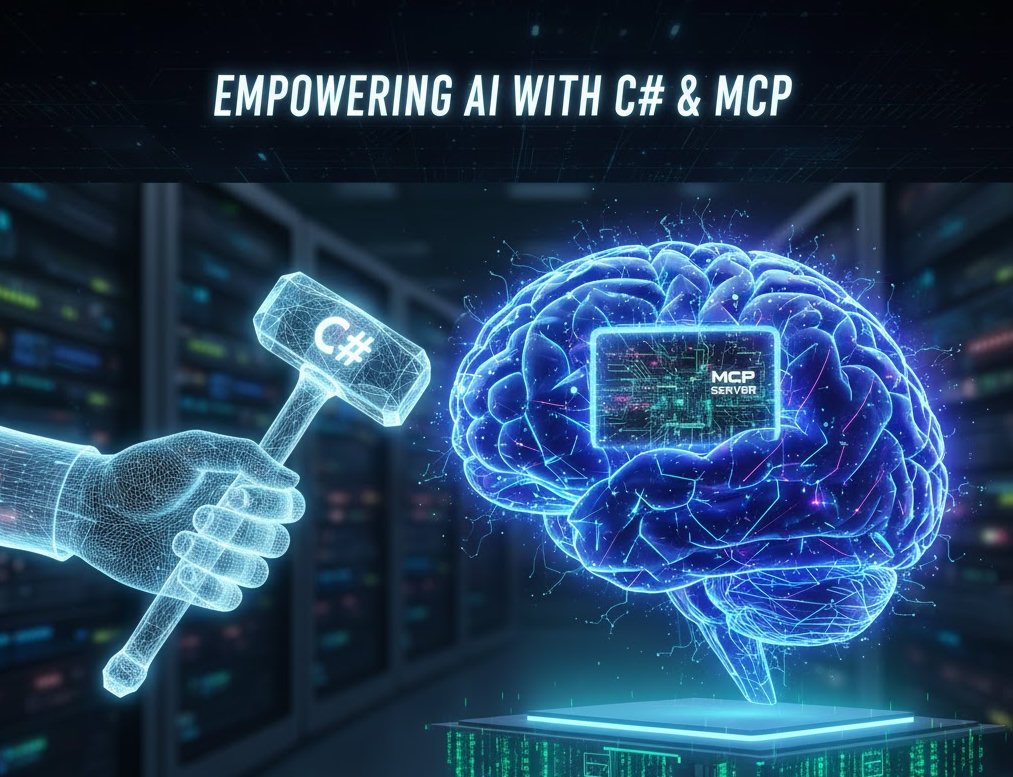
The Model Context Protocol (MCP) is an open standard that enables Large Language Models to interact with external tools and data sources. If you’re a C# developer looking to create your first MCP server, this guide will walk you through a minimal but functional example.
MCP allows LLM clients like Claude Desktop or AnythingLLM to access tools you define. Instead of the LLM being limited to its training data, it can call your custom functions to read files, query databases, or interact with APIs. Think of it as building a plugin system for AI assistants.
Setting Up the Server
The entry point is remarkably simple. Using .NET’s hosting model, we configure an MCP server with just a few lines:
using Microsoft.Extensions.DependencyInjection;
using Microsoft.Extensions.Hosting;
using Microsoft.Extensions.Logging;

var builder = Host.CreateApplicationBuilder(args);

builder.Logging.AddConsole(consoleLogOptions =>
{
    consoleLogOptions.LogToStandardErrorThreshold = LogLevel.Trace;
});

builder.Services
    .AddMcpServer()
    .WithStdioServerTransport()
    .WithToolsFromAssembly();

await builder.Build().RunAsync();
Code language: C# (cs)
Let’s break this down:
- AddMcpServer(): Registers the MCP server services
- WithStdioServerTransport(): Configures communication via standard input/output (the default transport for MCP)
- WithToolsFromAssembly(): Automatically discovers all tools marked with the [McpServerTool] attribute
Note that logging goes to stderr rather than stdout. This is crucial—MCP uses stdout for protocol communication, so application logs must use stderr to avoid interfering with the protocol.
Creating a Tool
Tools are defined using attributes. Here’s a complete example that lists files in the current directory:
using ModelContextProtocol.Server;
using System.ComponentModel;
using System.Text;

[McpServerToolType]
public static class FileTool
{
    private static readonly string LogFilePath =
        Path.Combine(AppDomain.CurrentDomain.BaseDirectory, "logs.txt");

    private static async Task LogToFileAsync(string message)
    {
        var logEntry = $"[{DateTime.UtcNow:yyyy-MM-dd HH:mm:ss} UTC] {message}{Environment.NewLine}";
        await File.AppendAllTextAsync(LogFilePath, logEntry);
    }

    [McpServerTool]
    [Description("Lists all files in the current working directory with the file size")]
    public static async Task<string> ListFiles()
    {
        await LogToFileAsync("Received a request to list files.");
        var resultBuilder = new StringBuilder();
        resultBuilder.AppendLine("Files in Current Directory:");

        try
        {
            string currentDirectory = Directory.GetCurrentDirectory();
            string[] files = Directory.GetFiles(currentDirectory);
            await LogToFileAsync($"Current directory is: {currentDirectory}");

            if (files.Length == 0)
            {
                resultBuilder.AppendLine("- No files found.");
                await LogToFileAsync("No files found in the current directory.");
            }
            else
            {
                foreach (var filePath in files)
                {
                    var fileInfo = new FileInfo(filePath);
                    resultBuilder.AppendLine($"- {fileInfo.Name} ({fileInfo.Length} bytes)");
                }
                await LogToFileAsync($"Successfully listed {files.Length} files.");
            }
        }
        catch (Exception ex)
        {
            await LogToFileAsync($"An error occurred while trying to list files: {ex}");
            return $"Error reading directory: {ex.Message}";
        }

        return resultBuilder.ToString();
    }
}
Code language: C# (cs)
Key Attributes
- [McpServerToolType]: Marks the class as containing MCP tools
- [McpServerTool]: Exposes the method as a callable tool
- [Description]: Provides context to the LLM about what the tool does (crucial for the LLM to know when to use it)
Design Patterns
This example demonstrates several best practices:
- Descriptive tool descriptions: The LLM uses the description to decide when to call your tool
- Error handling: Wrap operations in try-catch blocks and return meaningful error messages
- Logging: Track tool usage for debugging (note the separate log file)
- Structured output: Return formatted, readable responses
Running Your Server
Once built, your MCP server can be configured in Claude Desktop or other MCP clients like AnythingLLM. The client will discover your ListFiles tool and call it when appropriate—for example, when a user asks “What files are in the directory?”
Expanding Your Toolkit
This template makes it easy to add more tools. Just create additional methods with the [McpServerTool] attribute in your tool classes. You could add:
- File reading/writing operations
- Database queries
- API integrations
- System information retrieval
Each tool should have a clear, specific purpose and a description that helps the LLM understand when to use it.
Using Your MCP Server with AnythingLLM
Once your C# MCP server is built, you can integrate it with AnythingLLM, a powerful local AI application that supports MCP servers. Here’s how to set it up:
Step 1: Build Your Server
First, publish your C# MCP server as an executable:
dotnet publish -c Release -o ./publish
This creates a standalone executable in the publish folder.
Step 2: Configure AnythingLLM
AnythingLLM stores MCP server configurations in a JSON file. The location depends on your platform:
- Windows:
%APPDATA%\anythingllm-desktop\storage\plugins\anythingllm_mcp_servers.json - macOS:
~/Library/Application Support/anythingllm-desktop/storage/plugins/anythingllm_mcp_servers.json - Linux:
~/.config/anythingllm-desktop/storage/plugins/anythingllm_mcp_servers.json
If the file doesn’t exist, open AnythingLLM and navigate to the “Agent Skills” page—it will be created automatically.
Step 3: Add Your Server Configuration
Edit the anythingllm_mcp_servers.json file and add your server:
{
  "mcpServers": {
    "file-tool": {
      "command": "/path/to/your/publish/YourMcpServer.exe",
      "args": [],
      "env": {
        "DOTNET_ENVIRONMENT": "Production"
      }
    }
  }
}
Code language: C# (cs)
Replace /path/to/your/publish/YourMcpServer.exe with the actual path to your executable. On Windows, use backslashes or forward slashes: C:/Projects/McpServer/publish/McpServer.exe.
Step 4: Load and Test
- Open AnythingLLM Desktop
- Navigate to Agent Skills in the sidebar
- Click the Refresh button to reload MCP servers
- Your “file-tool” server should appear in the list with a green status indicator
Step 5: Use Your Tool
In any workspace, enable agent mode by typing @agent followed by your query:
@agent What files are in the current directory?
AnythingLLM will automatically discover your ListFiles tool and invoke it to answer the question.
Debugging Tips
- Check server status: The Agent Skills page in AnythingLLM shows whether your server started successfully
- View logs: Your server logs to stderr, which AnythingLLM captures—click the gear icon next to your server and select “View Logs”
- Verify the path: Ensure the executable path is absolute and correct for your operating system
- Test manually: Run your executable from the command line to ensure it starts without errors
Optional: Prevent Auto-Start
If you want to manually control when your server starts (useful during development), add the autoStart property:
{
  "mcpServers": {
    "file-tool": {
      "command": "/path/to/your/publish/YourMcpServer.exe",
      "args": [],
      "anythingllm": {
        "autoStart": false
      }
    }
  }
}
Code language: C# (cs)
You can then start and stop the server on-demand from the Agent Skills page.
Conclusion
MCP server development in C# leverages familiar patterns—attributes, dependency injection, and the hosting model. The protocol handles the complexity of LLM communication, letting you focus on building useful tools. With AnythingLLM’s built-in MCP support, your custom tools become immediately accessible to any LLM, whether running locally or in the cloud.
This simple file listing example serves as a template for more sophisticated integrations, giving your LLM applications access to the full power of the .NET ecosystem. Happy coding!
Next Step
I would recommend to read this article from Microsoft: Build a Model Context Protocol (MCP) server in C#